Software Requirements
- Git version >= 2.45.2
- Docker version >= 27.5.1
- Docker compose verson >= 2.32.4
Don’t have Git installed, see Git Guides on how to install Git on your OS
Don’t have Docker installed, see Docker Engine Guides on how to set-up Docker that is compatible with your machine
Don’t have Compose installed, see Compose Plugin Guides on how to install the plugin that is compatible with your machine
NOTE: You may need to restart your computer in order for Docker to kicks-in
- Check if Git is installed
- Check if Docker is installed
- Check if Compose is installed
Quick Install
- Navigate to your
$HOMEdirectory
cd $HOME- Create a
SigRepo_DBfolder in your$HOMEdirectory. This folder will be used to store theSigRepodatabase on your local machine.
mkdir SigRepo_DB- Clone
SigRepo_Serverrepository to your$HOMEdirectory
git clone https://github.com/montilab/SigRepo_Server- Navigate to
SigRepo_Serverfolder
cd SigRepo_Server- Run
install_sigrepo.shto initialize the MySQL database instance, configure the API endpoints, build the database, and launch the R Shiny web interface.
Important Notes:
- If you’re installing
SigRepoon your local machine, choose option (1) when prompted. If you’re installing it on a virtual machine, select option (2) instead.
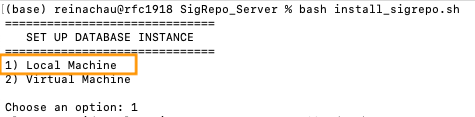
- If you choose option (2), you’ll also need to enter the public domain name or public IP address of your server.

– To get the public domain name of your virtual machine. Try this simple command on your terminal.
hostname -for
– To get a list of IP addresses on your virtual machine. Try this command.
hostname -INote: To determine if an IP address is public or private, check if it falls within the following private IP ranges (RFC 1918): 10.0.0.0–10.255.255.255, 172.16.0.0–172.31.255.255, or 192.168.0.0–192.168.255.255. If the IP address is within one of these ranges, it is a private IP address; otherwise, it is a public IP address.
- Next, when prompted for a location to set up the MySQL database, enter the full path to the SigRepo_DB directory you created in step (2).
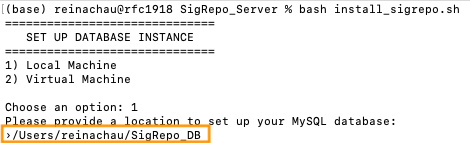
The script then asks for a MySQL root password and creates your admin account (username, email and password). This is the account you sign in to the web interface with; it is the only account on a new instance.
The installer pulls the images, starts the MySQL database and the API, builds the database schema and reference tables (this takes several minutes), and finally starts the R Shiny web interface. When it finishes you should see output similar to the following. If a default port (3306, 8020 or 8051) is already in use on your machine, the installer picks a free port instead and prints it here.
==============================
   SIGREPO IS READY
==============================

  Web interface    http://localhost:8051
  API docs         http://localhost:8020/__docs__/
  MySQL database   port 3306

Sign in as '<your admin username>' with the password you chose.
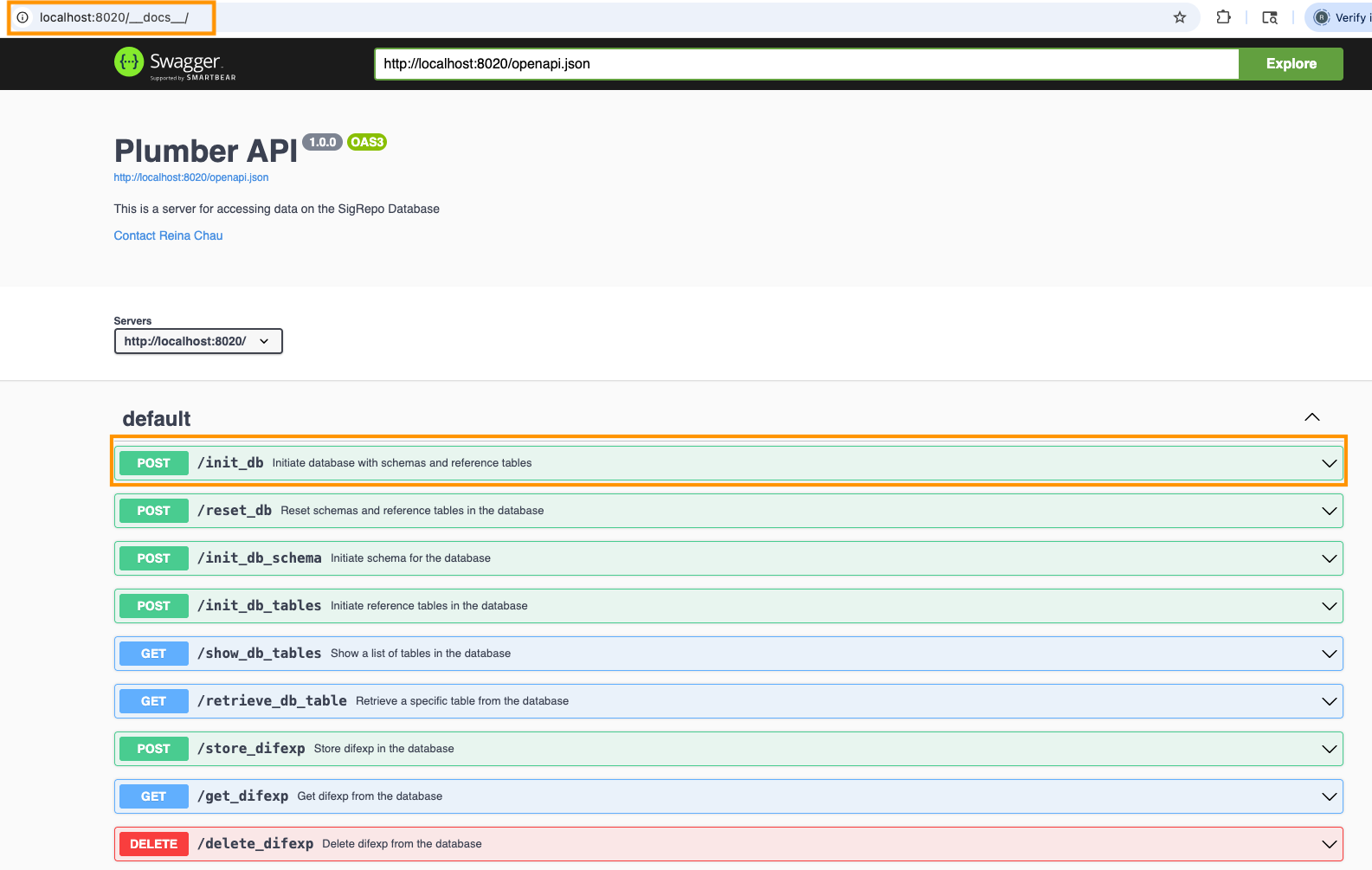
It is the only account on this instance, and it is an administrator.- Open your web browser and navigate to the API docs
address printed in step (5),
e.g.
http://localhost:8020/__docs__/, to verify that theSigRepoAPI is running.
Important Notes:
The installer builds the database for you by calling the API’s
init_dbendpoint, which creates the schema and loads reference tables such as organisms, phenotypes, platforms and sample types. You do not need to run it yourself.A local install fetches MSigDB gene set collections with
msigdbrwhen they are not in the on-disk cache, so enrichment can use any collection, not only the ones the installer cached. A virtual machine install keeps the cache-only behaviour that sigrepo.org runs with; to change either, setMSIGDB_ALLOW_RUNTIME_FETCHin the .Renviron file of the database directory.If the installer reports that the database was not built, it prints the
curlcommand to retryinit_dband the command that starts the web interface afterwards. The Admin Key that command needs is stored in the .Renviron file in the database directory you chose in step (5), e.g. $HOME/SigRepo_DB.
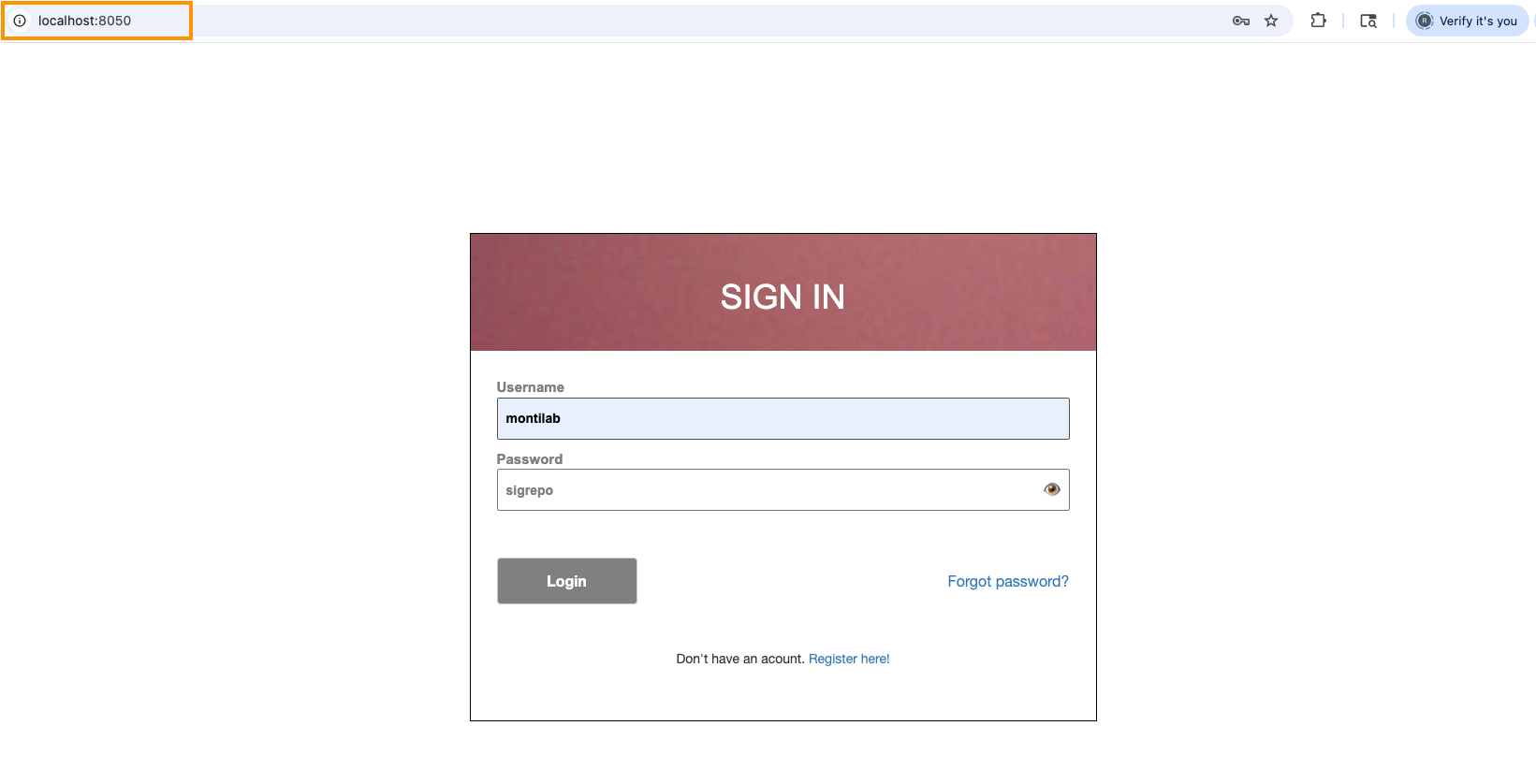
- Open the Web interface address printed in step (5),
e.g.
http://localhost:8051, to confirm that theSigRepoR Shiny app is running. Sign in with the admin account you created during installation.
Any questions or issues? Please report them on our github issues.